

Getting your technical SEO right is like getting a free lunch. Why would you not want to do it? Today, with Google’s limited crawl budgets and A.I. spam, anyone with access to ChatGPT can upload a blog post and get their content indexed.
Yes, search engines actually spend money to crawl your site. So you really want to ensure Google’s highly limited crawl budget is well spent on your site.
Simply put, technical SEO is the process of ensuring your site best meets the technical requirements of search engines. Nonetheless, the goal is to improve search engine rankings. Higher rankings. More traffic. More revenue.
How a Technical SEO Audit Helps with Keyword Research and Content Strategy
Today, a good technical SEO audit, combined with clear actionable deliverables, can lay the foundation for a year’s long SEO strategy. I break a good SEO process into four main buckets, as this makes it easier to assign tasks across in house and offshore freelancers.
1. Technical Site Audit, Content Audit, and Keyword Research
Technical SEO lays the foundation. There is no point building backlinks or producing content for a site that isn’t working properly.I’ve managed SEO projects where sites were wrongfully de-indexed after being hacked.
You want to ensure your technicals are sound from site speed to indexability.
2. Customer Research and Content Strategy
There is a huge misconception that publishing content alone will automatically drive traffic. Users have pain points. They are looking for solutions.
Our technical SEO audit helps you map out your site architecture, identify the right keywords (search queries) and account for search intent. This may mean adding content pillars, removing thin content, or rewriting what already exists.
3. Outreach and Backlink Acquisition
This defines which commercial pages to target when building links. For most small and medium service based businesses, that usually means their localized service pages.
4. Documentation and Process Management
A good SEO audit delivers a report on existing backlinks, current keyword rankings, and proposed targets. Without documentation, things get messy fast. Every audit we run comes with clear process management and defined deliverables.
Technical SEO Checklist: The Fundamentals
I ain’t going to waste your time talking about the basic, easy stuff that every other SEO blog (or agency for that matter) is able to do for you with eyes closed. However, for the sake of completeness, here’s a basic checklist.
Site Structure and Internal Linking
- Important pages within 3 clicks of homepage
- Clear internal linking structure
- No broken internal links
- Organise your site’s content in a logical, hierarchical manner

URL Structure Best Practices
- Short, descriptive URLs
- Include target keyword in URL
- Avoid parameters and long strings
XML Sitemaps and Indexation
- Submit your XML sitemaps to search engines
Mobile Responsiveness and HTTPS
- Ensure mobile friendliness
Google has sunset the Google Search Console Mobile Usability report. You can use Google’s Lighthouse extension.
- Implement HTTPS
Most web hosts automatically include HTTPS and give out a free certificate. You can get a free SSL certificate with a free Cloudflare plan.
On Page SEO Technicals
- One H1 per page/post containing primary keyword
- Title tag 50–60 chars that’s inclusive of the target keyword
- H2s with target keyword variations
- Meta description 150–160 chars, including target keywords
Read: I wrote an entire detailed How-to for On-Page SEO guide.
Okay, now let’s move on to the juicy part.
How to Crawl Your Site with Screaming Frog
You can download Screaming Frog for free. In short, it’s a more extensive scraping, analytical software that comes in useful for a more in depth technical SEO audit.

Essential Data Points to Export
- Address (URL)
- Status Code
- Indexability
- Title 1
- Title 1 Length
- Meta Description 1
- Meta Description 1 Length
- H1-1
- Word Count
- Canonical Link Element 1
- Response Time
- Unique Inlinks
- Crawl Depth
Common Technical Issues to Identify
- 404/410 errors (Status Code)
- Non-indexable pages that should be indexed
- Missing titles/meta descriptions
- Title/meta too short (<30 chars) or too long (>60/160 chars)
- Multiple or missing H1s
- Thin content (<300 words)
- Response time >1000ms
- Important pages with <5 unique inlinks
Case Study: Fixing Indexation Problems with Robots.txt
For my crawl, here are some of the problems identified: asset files (CSS, JS, fonts) are being crawled and potentially indexed.
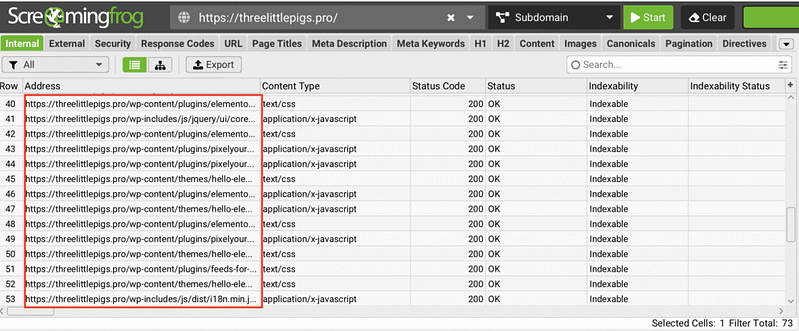
Actions taken: There was no robots.txt found in my cPanel. Basically, All in One SEO is ‘serving it dynamically’, and I updated robots.txt via All in One SEO → Tools → Robots.txt Editor.
I added blocking rules:
 Disallow: /wp-includes/
  Disallow: /wp-content/plugins/
  Disallow: /wp-content/themes/*/assets/
  Disallow: /wp-content/uploads/elementor/
  Disallow: /20*/  (blocks date archives)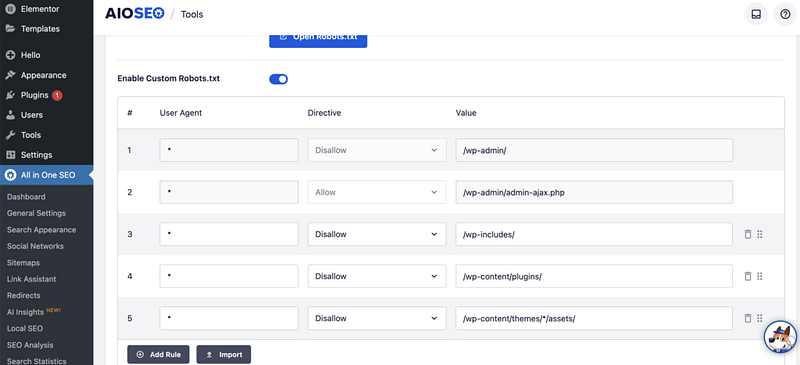
How to Audit and Fix 301 Redirects
HTTP errors, such as 404 and 410 pages, can significantly consume your crawl budget. You don’t want search engines to waste valuable resources crawling pages that don’t exist instead of indexing important content.
A 301 redirect is a permanent redirect from one URL to another. When someone (or Google) tries to visit the old URL, the server automatically sends them to the new location. The “301” part tells search engines: “This page has permanently moved. Transfer all the SEO juice to the new URL.”
So I did, accessed my .htaccess file from cPanel and made sure they all worked.
How to Set Canonical URLs to Avoid Duplicate Content
Canonicalization is a big word! But it basically means: when there are multiple versions of the same page, Google chooses only one to keep in its index. Google will select a canonical URL that will appear in search results.
This process is known as canonicalization.
If Google identifies duplicate content on your website without clear guidance, it might not index the page you prefer.
To address this, you can add a canonical tag (<link rel="canonical" href="..." />) in the HTML of that DESIRED page. This tag informs search engines which version of the page is the primary one to be indexed. This can also be done with All in One SEO.
How to Audit Page Speed and Server Response Time
Page speed is a ranking factor, especially after Google’s core web vitals documents.
I found out that page speeds and response times are NOT the same thing.
Server Response Time vs Page Load Speed
Not to get too technical, but response time measures how long it takes the SERVER to respond after the browser requests a page. This indicates database query speed, hosting quality, and plugin/code efficiency.
Thresholds:
- Good: <200ms
- Acceptable: 200–600ms
- Slow: 600–1000ms
- Problem: >1000ms
Page speed provides a fuller picture. It includes response time plus all the front end work from downloading HTML, CSS, JavaScript, images, fonts, executing scripts, etc. Core Web Vitals metrics like LCP (Largest Contentful Paint) and CLS (Cumulative Layout Shift) fall into this category.
For page speeds, you can use GTMetrix. There is a free version.
Here’s my GTMetrix report.

Quick Fixes for WordPress Shopify and Wix
- Sign up for Cloudflare (free) and turn it on. This makes everything load faster from servers close to your visitors.
- For WordPress, install one good speed plugin like NitroPack. Turn on the main switches: lazy-load pictures, convert images to WebP, delay JavaScript, remove unused CSS.
How to Diagnose Slow Pages
- Take a look at your Screaming Frog results for every single page that loads slowly (above 600–1000ms).
- Put the same pages into GTmetrix. You’ll get a beautiful timeline (called a waterfall chart) that shows which images, scripts, or files are the real troublemakers.
- Then run your site through PageSpeed Insights.
This shows both lab data (Google Lighthouse) and real user field data (Chrome User Experience Report). Use the “Opportunities” section to prioritize fixes. You can also look into Google Search Console’s Speed Report, which groups similar pages and highlights real user performance issues.
I would not obsess over page speeds unless your site is really extremely slow. It can get really technical unless you have a development background.
Core Web Vitals Explained in a Non Tech-y Manner
Core web vitals are big words and can sound confusing to us… non developers! Let’s demystify it.
- When does something first appear? This is called First Contentful Paint. Even a simple headline or logo showing up quickly tells users the page is working. You should aim for under 1.8 seconds.
- When does the main stuff show up? That is Largest Contentful Paint or LCP. It tracks when the biggest important piece of content appears like a hero image a featured video or a main headline. That is usually what people came for. Load it in under 2.5 seconds.
- When can I actually use the page? This is Time to Interactive or TTI. It means the page is not just visible but ready. Buttons work menus open and nothing feels stuck. Get here in under 3.5 seconds.
- How fast does the page respond when I click something? That is First Input Delay or FID. It measures the gap between your first tap and when the browser reacts. If it lags the site feels broken even if it looks loaded. Keep this under 100 milliseconds which is one tenth of a second.
- Does the page jump around while I am reading? This is measured by Cumulative Layout Shift or CLS. It happens when an image ad or embed loads late and shoves text down or when a font swap moves everything. These shifts are frustrating and feel unprofessional. Keep your CLS score below 0.1.
How to Fix Core Web Vitals on WordPress Without Code
First Contentful Paint FCP
- Use a caching plugin like WP Rocket or LiteSpeed Cache
- Upgrade to faster hosting or add a CDN like Cloudflare (free)
- Minimize heavy themes or plugins that delay initial rendering.
Many WordPress themes and plugins come with features you’ll never use. The extra code forces the browser to do more work. Personally, in my newer projects, I choose to go with light weight themes like Twenty Twenty Five to avoid code bloat.
Largest Contentful Paint LCP
- Compress and convert images to WebP using ShortPixel or Imagify. I use Image optimization service by Optimole.
- Preload key hero images. Many caching plugins do this automatically.
- Avoid lazy loading on above the fold images. Use eager loading instead.
WordPress lazy loads images by default but usually skips the first image in the content. This is not always reliable. Some themes or custom code may still add lazy loading to top images which hurts LCP.
Check your site HTML. Right click your hero image and choose Inspect. If you see loading equals lazy on an image at the very top of the page then that is a problem.
Time to Interactive TTI and First Input Delay FID
- Remove unused plugins and scripts
- Avoid page builders that load too much JavaScript and CSS
- Many websites load scripts for analytics, live chat widgets, social media buttons, or embedded videos right when the page starts loading. While these tools are useful, they often aren’t needed the moment the page opens. You should defer these scripts.
Cumulative Layout Shift CLS
- Never remove width and height attributes from images. WordPress adds them by default.
- Do not inject banners cookie notices or pop ups at the top of the page during load
- Reserve fixed space for ads iframes or embedded videos using container elements
Elements like Google Adsense, YouTube videos, or embedded maps often load after the rest of the page. Because their final size isn’t known upfront, they can suddenly push content down when they appear. Thus creating frustrating layout shifts.
To prevent this, wrap them in a container with a fixed aspect ratio:
.video-container {
position: relative;
width: 100%;
height: 0;
padding-bottom: 56.25%; /* 16:9 aspect ratio */
}
.video-container iframe {
position: absolute;
top: 0;
left: 0;
width: 100%;
height: 100%;
}
How to Build a Website Quality Audit Spreadsheet
The cool part about aggregating the data is that you get to lead into a content audit as well. You get to map your ranking keywords, low hanging fruit opportunities, and required on page fixes all in one view!
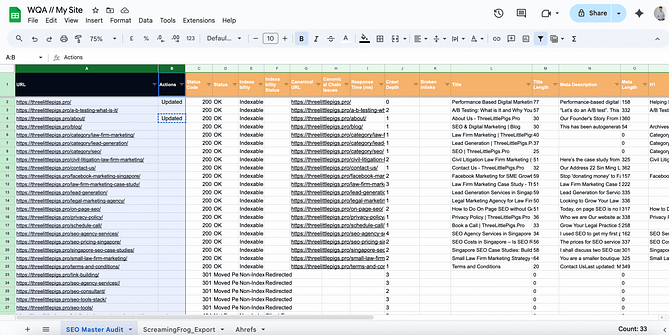
I personally designed my own website quality audit, so much so that the main sheet pulls data from Screaming Frog exports, GA4 exports, GSC exports, and Ahrefs exports. Yes, you do not even need the paid version of Screaming Frog to do this.
Exporting Data from Screaming Frog
- Crawl site, export “Internal > All”
- Key columns: Address, Status Code, Title 1, Meta Description 1, H1-1, Word Count, Indexability, Canonicals, Response Time, Inlinks, Outlinks
Exporting Data from Google Analytics 4
- Pages and screens report (Engagement > Pages and screens)
- Set date range (min 3 months, ideally 12)
- Export: Page path, Views, Users, Sessions, Avg engagement time, Conversions, Bounce rate
Exporting Data from Google Search Console
- Performance > Pages tab
- Date range matching GA4
- Export: Page, Clicks, Impressions, CTR, Average position
- I do a separate export for Queries filtered by page (and a separate dump too)
Pulling Keyword Data from Ahrefs or SEMrush
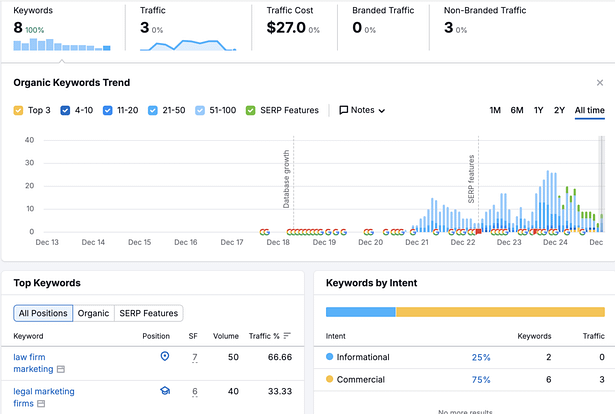
First I’ll look for organic rankings
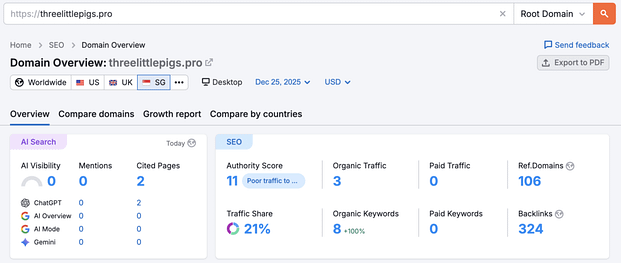
These reports are taken when I am rejigging my site, and midway through an entire overhaul of SEO content audit. Hence, don’t mind the statistics. Yet I am organically ranked for a couple of legal marketing keywords.
Then the backlinks tab
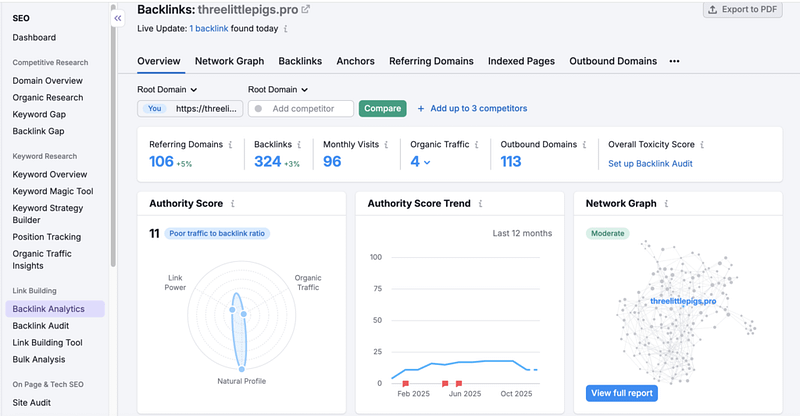
Now, let’s move on to the fixes, interpretation of the data, and action steps!
How to Conduct a Content Audit for SEO
Identifying Thin and Duplicate Content
Firstly, identify and enrich pages with thin content that offers little value to users. Now, be mindful. ‘Thin content’ is subjective today as Google has evolved into a query based search engine.
The theory is: if a 200 word page answers the user’s query, it’ll rank.
In general, look for pages with under 600 words that aren’t ranking and aren’t targeting any keywords. Theoretically, if the content ‘don’t add any value’, so look for ways to combine content with other core pieces to make these core pieces stronger.
Mapping Keywords to Existing Pages
Through Google Keyword Planner, SEMrush, Ahrefs, and similar third party tools, you can map your existing pages, blog posts, and content to keyword data. You can also structure your mapping exercise to concepts of topical authority and topical maps.
Keywords today should be seen as queries and not just keywords. Queries boil down to search intent.
To audit “search intent”, open up an incognito window, query that targeted keyword, look at the top ten to twenty search results and ask yourself “what is the user looking for?”
Are the search results informational, transactional, navigational, or a mix? Then you work backwards and craft your own content accordingly. Content wise, look at the gaps in existing content in the top search results. Is there a topic or subtopic not covered in the top results? Or are users actually looking for something else?
How to Improve E-E-A-T Signals
Google today faces an AI spam issue. LLMs can spin out content in just one click. Creating content that ticks the usual SEO boxes is blasé. Your content has to tick the boxes for E-E-A-T. Google has also made E-E-A-T a ranking factor.
I don’t obsess over E-E-A-T, but one lens to view this through is to imagine yourself stumbling upon a website and asking: “Can I trust this?”
Here are some simple ways to improve your E-E-A-T:
- Design a professional and user-friendly website
- Demonstrate credentials and be clear about who is behind the content (consider author pages and author boxes at the end of blog articles)
- Use data, reference studies, and cite experts in your content
- Optimise your About Us and Contact Us pages: include social media links and highlight your expertise
Identifying Quick Wins at Position 10 to 20
First, look for pages with a 200 status that are at position 10 to 20. Check your Google Search Console and Ahrefs/SEMrush audit keyword data. These pages can be quick wins.
In GSC, if click through rate is low, you’re getting impressions with no clicks, this could be a SERP snippet problem. Try optimising your meta descriptions and title tags.
In GA4, look for pages with high bounce rates and short engagement. There could be a content quality issue. The content may not be fulfilling the user’s query.
The central idea to implement urgent fixes on technical errors on high traffic pages, and look for quick wins on pages that are ranked at position 10 to 20. For page two ranked articles, juice up your content and try juicing up your content and pointing internal links towards that page!
Strategic Internal Linking and Content Clusters
First, fix your broken links. Secondly, implement strategic internal linking. This ‘distributes’ page authority and helps users navigate your site. It also helps search engines in understanding the relationship between your pages.
There’s no need to overcomplicate this. Topically related articles can form a content cluster. Then link upwards towards a core page. Usually your ‘money page’.

How to Audit Your Backlink Profile
Let’s move on to the quality of your site’s backlinks.
The conventional advice is to disavow spam or negative SEO backlinks. Yet as of recently, Google has recommended that you disavow links only when you’ve received a manual site penalty.
John Mueller from Google mentioned at NYC’s search event:
“So internally we don’t have a notion of toxic backlinks. We don’t have a notion of toxic backlinks internally.
So it’s not that you need to use this tool for that. It’s also not something where if you’re looking at the links to your website and you see random foreign links coming to your website, that’s not bad nor are they causing a problem.
For the most part, we work really hard to try to just ignore them. I would mostly use the disavow tool for situations where you’ve been actually buying links and you’ve got a manual link spam action and you need to clean that up. Then the Disavow tool kind of helps you to resolve that, but obviously you also need to stop buying links, otherwise that manual action is not going to go away.”
Nonetheless, it’s good to get a rough gauge of the backlinks pointing to your site. For a single site, I usually use a manual eye test of the site’s content. I also pop the site into Semrush/Ahrefs domain checker to look at ranked content.
I look at the ranked content’s relevance to the site’s intended niche to determine quality of organic traffic.
Through this, you should be able to get a good feel if your backlinks are relevant to your site’s topic.
One metric (not perfect) is to look at topical domain trust score from Majestic SEO to make a good guess of relevancy to your niche. I use this metric when processing outreach prospects for link building at scale. You don’t need this if you’re auditing a single site.
Conclusion
If your SEO consultants or agencies aren’t reporting data at the level you read in this article. Then fire them. Technical SEO seems tedious. However, all you need is patience, a spreadsheet and a couple of SEO tools.
Start with the basics. Fix your 404s and broken links. Then work your way up to content audits, strategic internal linking and speed fixes.
Technical SEO isn’t glamorous, but it’s one of the ‘free’ high leverage fixes you can do for your site. Nonetheless, I hope this article provides a detailed, intuitive method of doing a free (or low cost) technical SEO audit for micro to small business owners.
